
Have your Saver key and FTP/SFTP access ready. Keep an independent backup if you have one. Saver does not include a firewall or daily monitoring.
Need help finding FTP/SFTP access? View the quick guide →
1. Order and receive your key
Choose Saver in the order form, enter your domain and email, then the validation code. The displayed reference confirms the order has been recorded, not paid.
Your key is issued after payment has been recorded and is delivered by email. It is tied to the domain and edition. Check its validity date in your customer account.
2. Install the kit
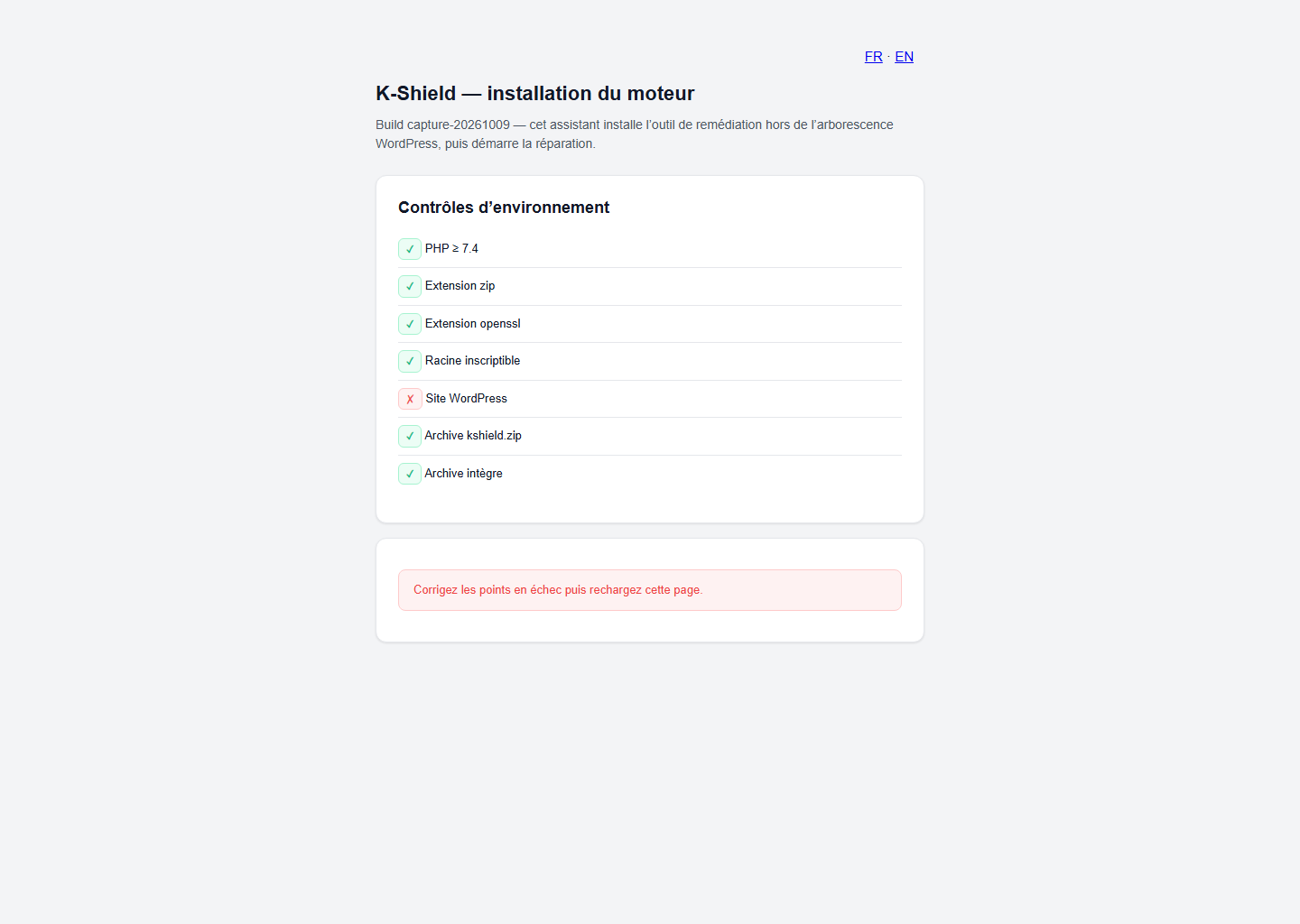
Upload clean.php and kshield.zip together next to wp-config.php, then open https://your-site.ch/clean.php. Leave the archive intact.
Resolve failed environment checks, enter your Saver key and recovery email, then start installation. An old KSL1 token is not a KSL2 key.
 Enlarge screenshot ↗
3. Keep your administrator access
When installation finishes, store the assistant address and admin token in a password manager. The token opens the assistant; it is not your licence key.
Open the assistant and sign in. If a warning says a token recovery file remains, follow the offered procedure after saving your access details.
4. Assessment
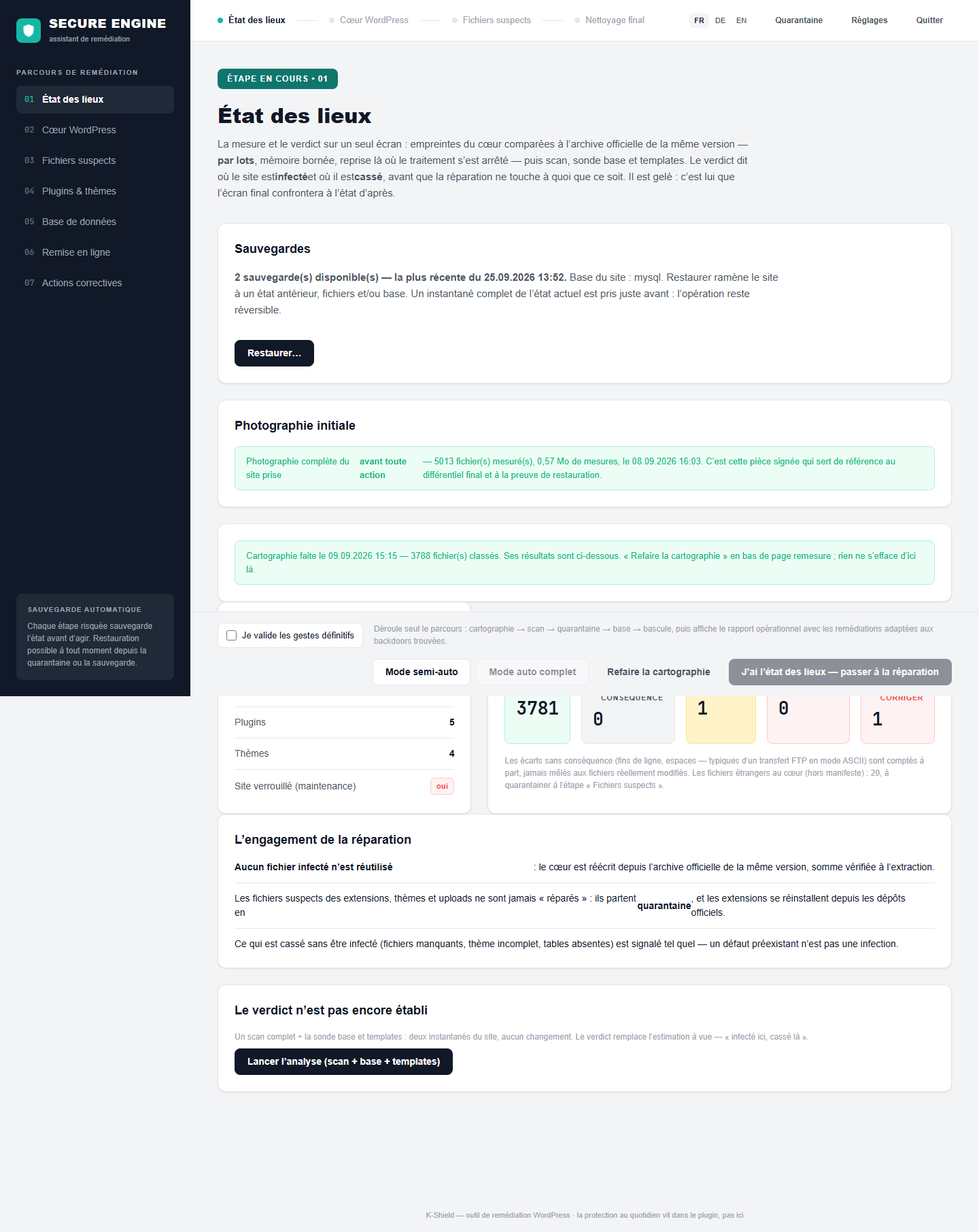
The assistant checks the site and records the initial findings. Review anomalies before choosing operations.
Engine access is independent of the WordPress administrator account. Risky steps offer a backup; verify it completed before modifying the site.
 Enlarge screenshot ↗
5. Restore WordPress core
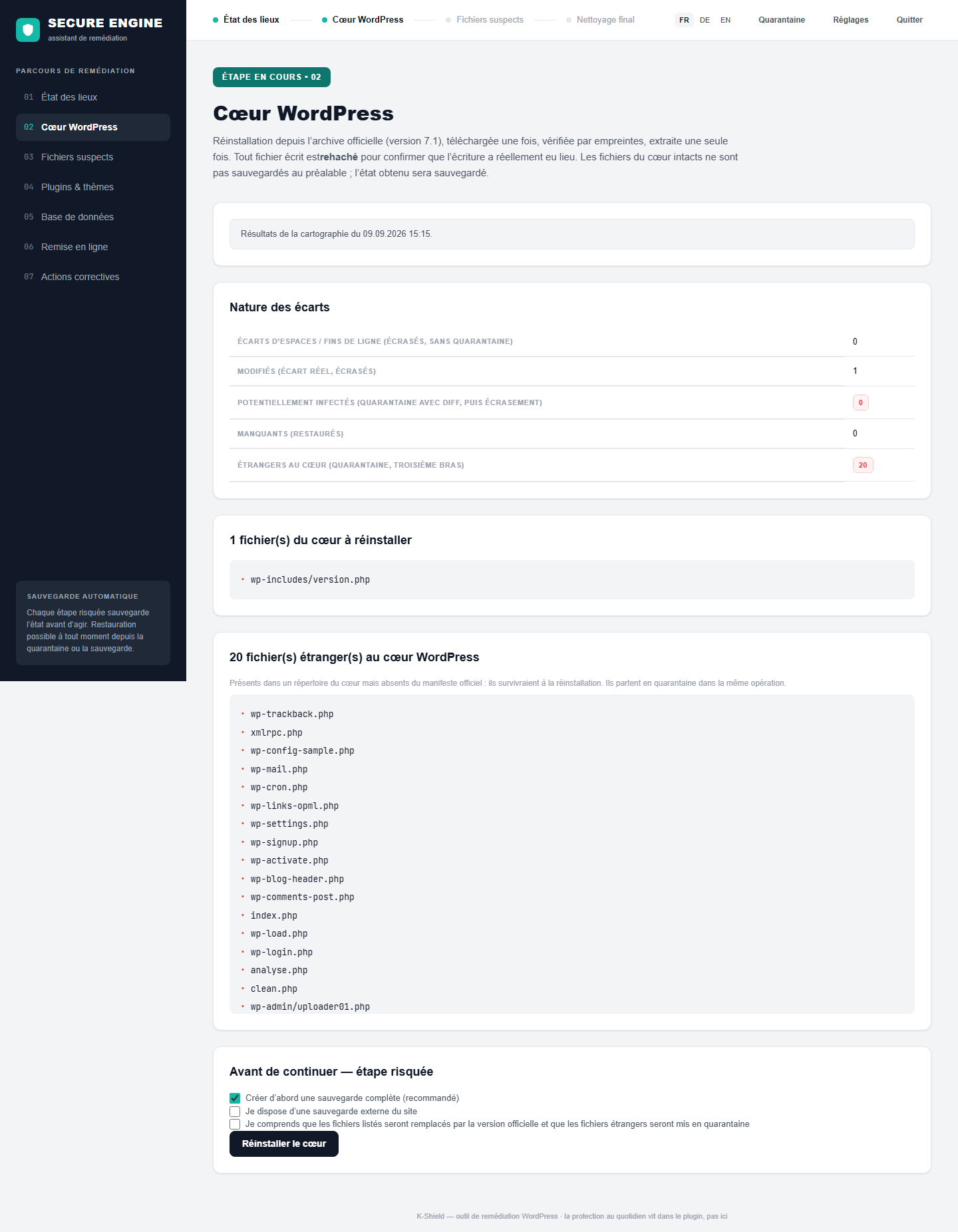
Missing or altered official files are restored. Foreign files in core directories are reviewed and handled through the recovery workflow.
Reinstallation uses the official archive, checksum checks and verification of written files. Quarantine preserves items that are set aside.
 Enlarge screenshot ↗
6. Handle suspicious files
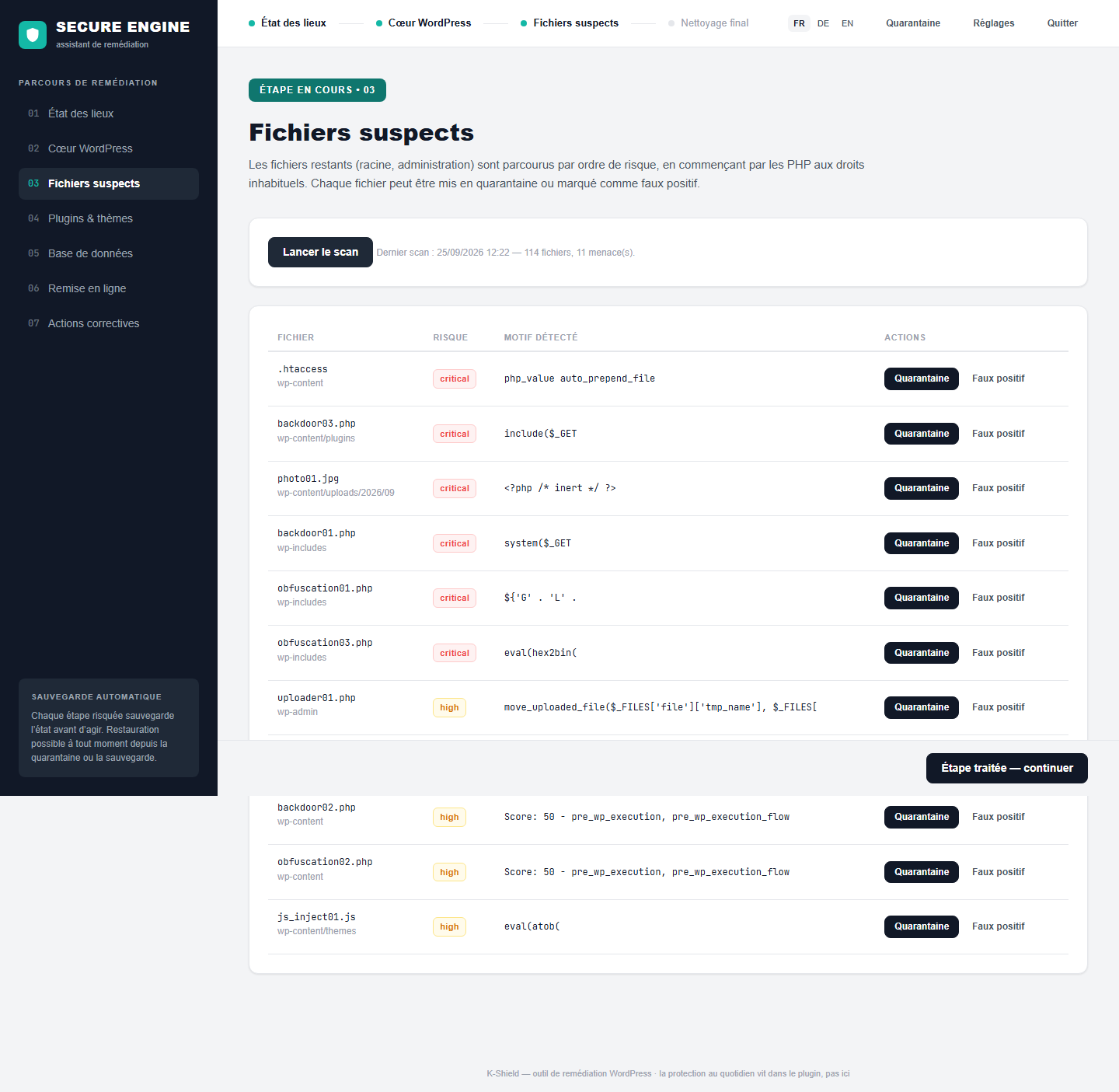
The scanner identifies files requiring review. Context and quarantine support decisions while preserving restoration options.
Decisions and operations are logged. Restoring a quarantined file can reintroduce a threat: review its role and detection reason first.
 Enlarge screenshot ↗
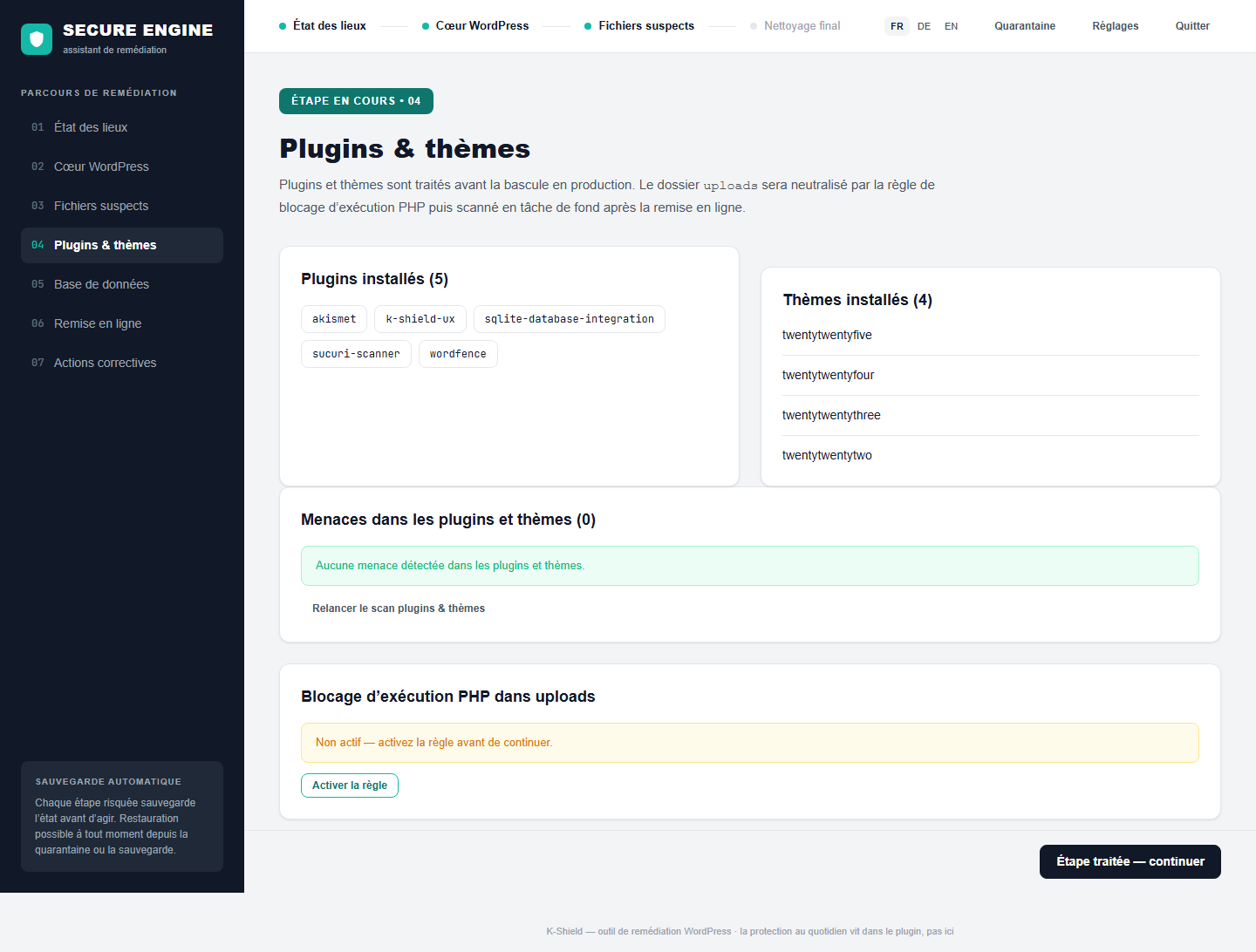
7. Plugins and themes
Saver also checks the components that run your site. Official components may be reinstalled; custom or premium themes need an appropriate clean copy.
Official sources can replace certain components. Custom changes and unavailable packages require a restoration source from the publisher or your backup.
 Enlarge screenshot ↗
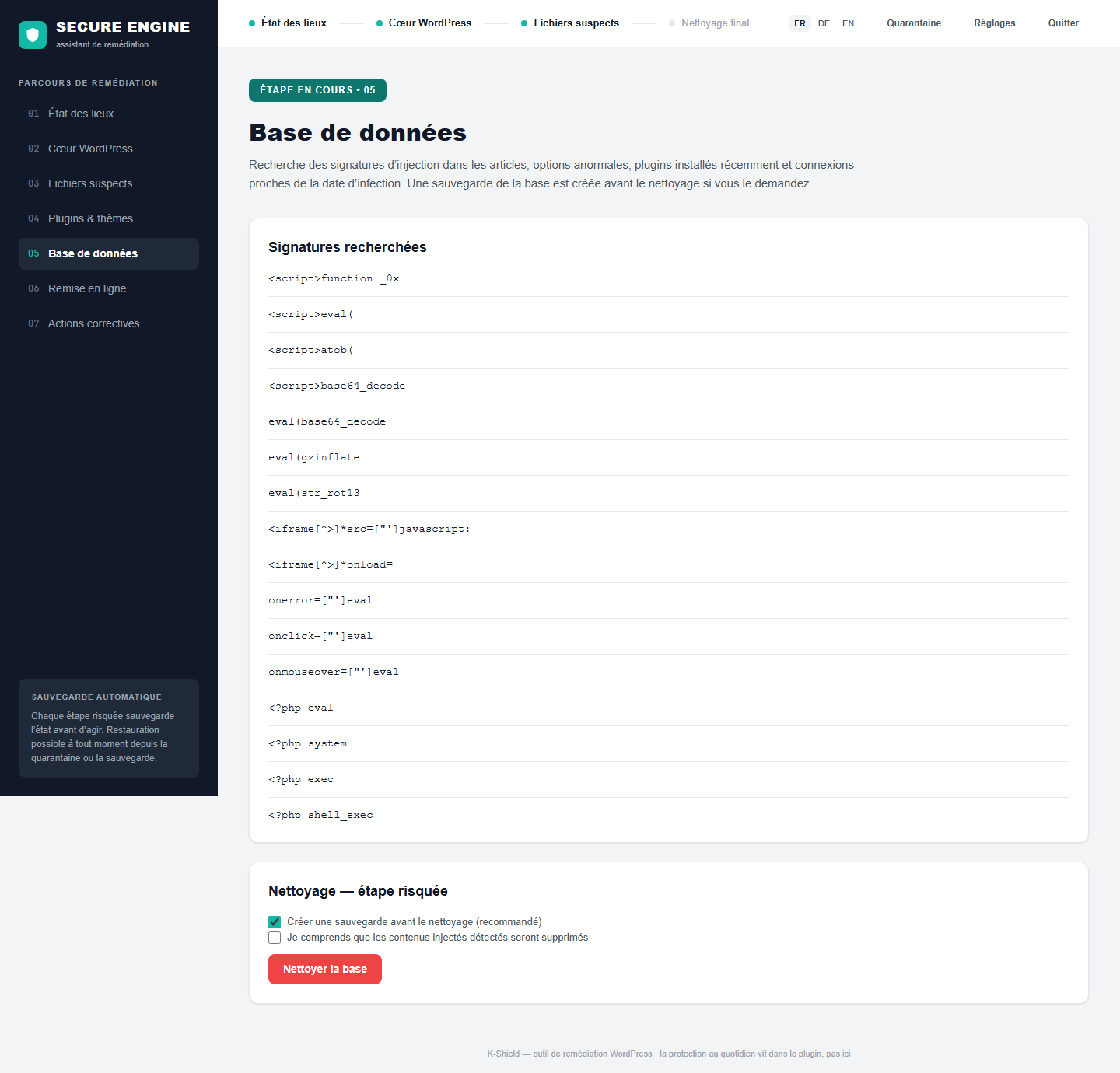
8. Database checks
Review database anomalies and proposed corrections. Recoverable content is distinguished from missing items.
Back up the database before changes. Saver cannot reconstruct permanently deleted information when no copy exists.
 Enlarge screenshot ↗
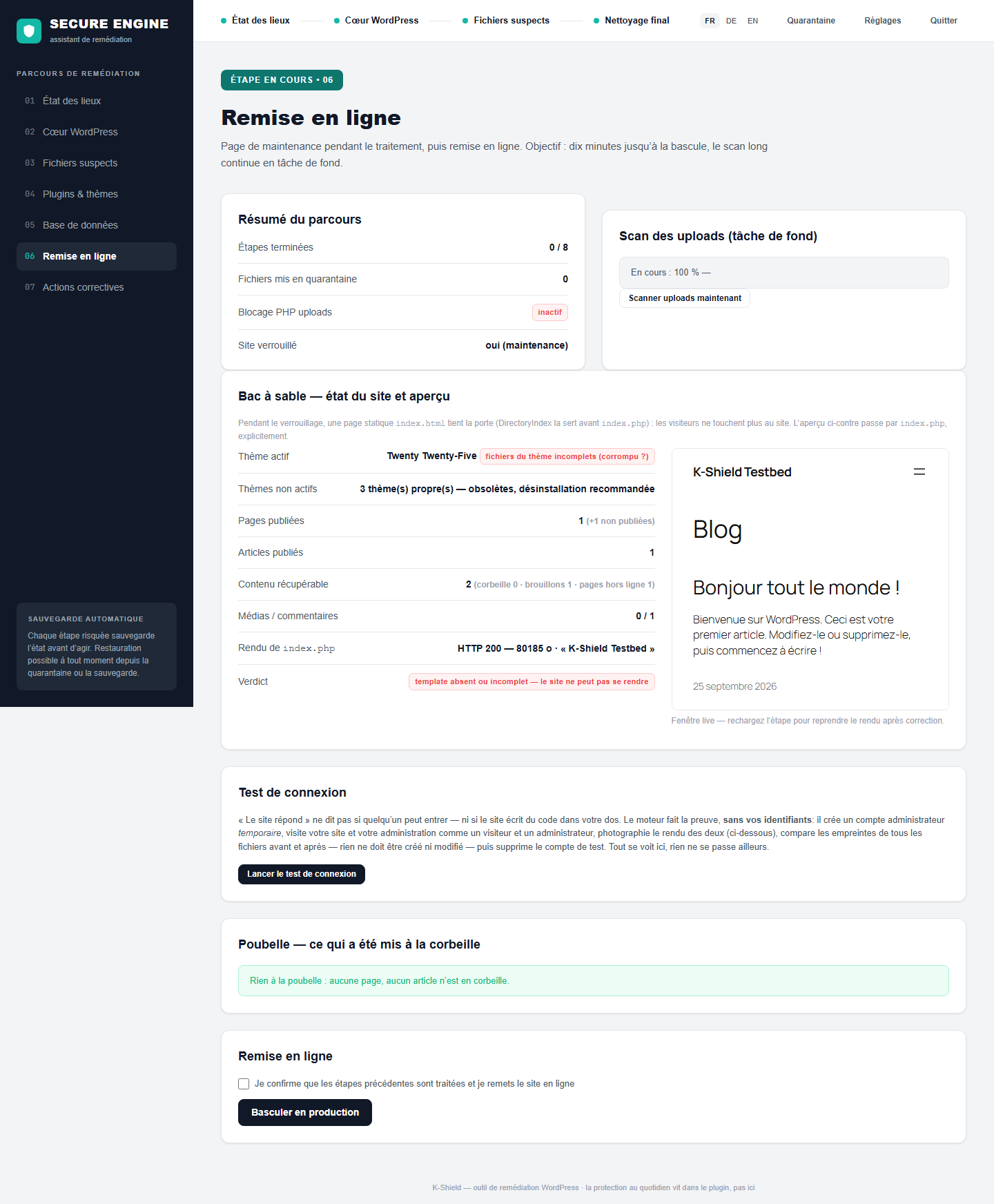
9. Verify the return to service
Check site rendering and administrator access before leaving maintenance. A responding page alone does not confirm everything works.
The workflow includes a preview and login tests. Additional checks can compare files before and after execution to detect reinfection.
 Enlarge screenshot ↗
10. Hardening and final report
Address suspicious accounts, scheduled tasks and settings. The report separates completed actions from work still required.
WP-Cron inventory, user checks, secret renewal and a hardening profile, according to available actions. Open points and environment warnings remain visible.
 Enlarge screenshot ↗
11. Limits to understand
Saver cannot recreate permanently destroyed media, custom code or data without a usable copy. Official WordPress files can be reinstalled from their source.
Saver does not add Full’s monitoring plugin, WAF or continuous login analysis.
Compromised hosting and vulnerable plugins also need attention. Rollback depends on backups and items actually preserved.
12. An engine that works independently of WordPress startup
Saver and Full use a separate engine with its own access URL. If WordPress is infected or cannot start, the engine can remain accessible as long as its own files, access and hosting have not been compromised.
Troubleshooting
My key is rejected.
Check the Saver edition, domain and validity date. Copy the full key without publishing it. Your customer account lets you review or reset the licence.
A repair fails.
Keep the error and report. Avoid repeated actions at random. Use guided restoration after checking which backup to restore.
WordPress no longer opens.
The assistant may remain available at its own address. Review diagnostics and quarantined files, then follow the recovery proposals.